
Video fade in / fade out Filter for free
The Fade In and Fade Out Video filter is a visual effect used in video editing to smoothly start or end a video.
This effect causes the video to gradually appear or disappear rather than starting or ending suddenly and abruptly.
Step-by-step guide: Fading in and out of videos made easy
In this tutorial we will show you how to apply fades to a video
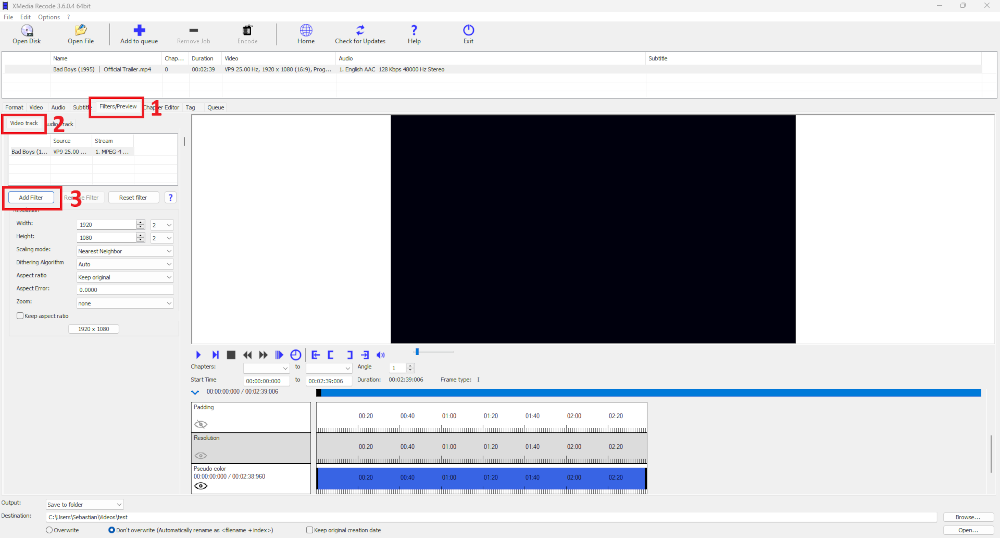
Step 1: Select the "Filter/Preview" tab and click the "Video Track" tab
You can add the Video fade in / fade out using the "Add filter" button.
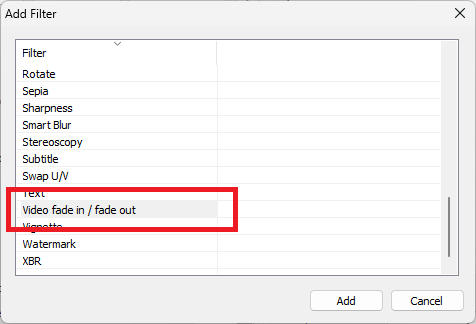
Step 2: Select Video fade in / fade out filter and click "Add"
Step 3: Select Video fade in / fade out and set settings
Advertisement
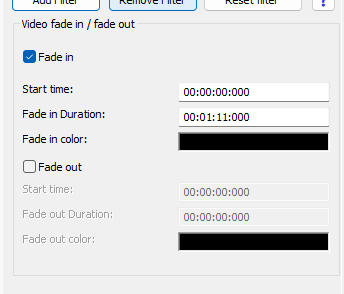
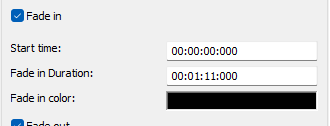
Fade-in video (fade-in effect)
In the fade-in effect, the video gradually becomes visible from a black background at the beginning of the clip.
This effect ensures that the video does not appear suddenly, but blends smoothly into the image content.
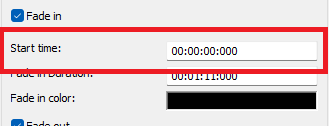
Start time (Fade-in video)
Sets the point at which the fade-in color begins to become transparent.
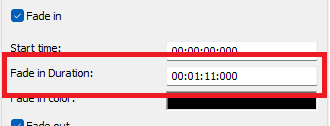
Fade-in duration
Sets the time period over which the fade-in color gradually becomes transparent, revealing the video.
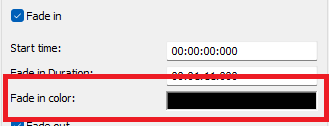
Fade-in color
Opens a color palette from which you can select the fade color.
Advertisement
Fade out video
The fade-out effect causes the video to slowly fade from full visibility to black.
The fade-out effect is ideal for visually marking the end of a chapter or story.
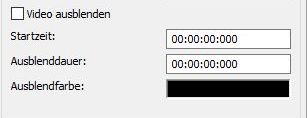
Start time
Sets the start time of the fade.
Fade-out duration
Sets the desired fade-out duration.
Fade-out color
Opens a color palette from which you can choose the fade color.