RGB normalization
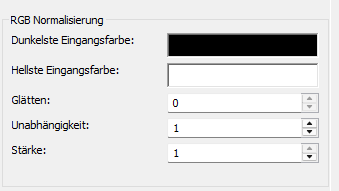
The "RGB normalization" filter is used to normalize the RGB values of a video. It improves color dynamics, ensures uniform brightness, and optimizes visual quality by automatically adjusting the color channels.
For each channel of each frame, the filter calculates the input range and maps it linearly to the user-defined output range. By default, the output range covers the entire dynamic range from pure black to pure white.
Advertisement
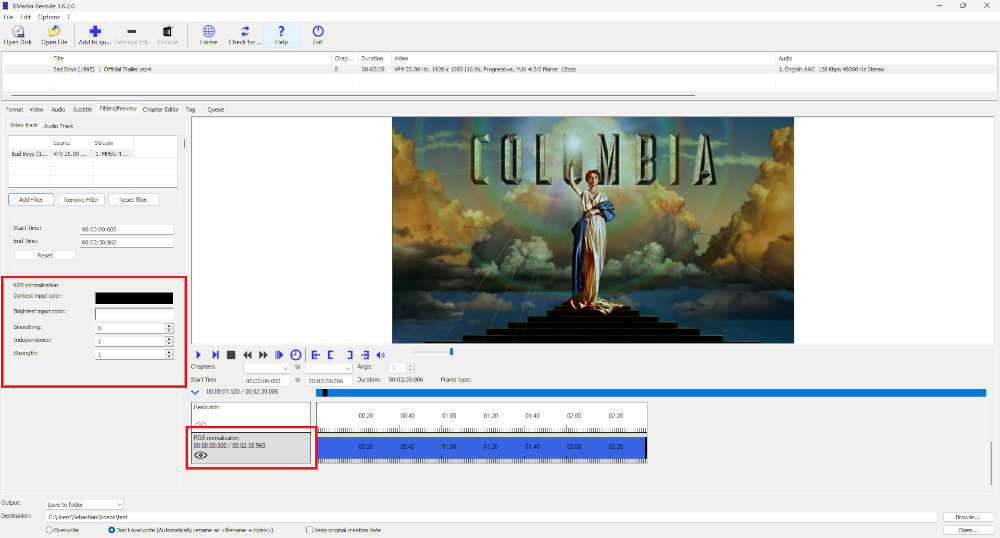
Step 1: Select the "Filters/Preview" tab and click on the "Video Track" tab.
Use the "Add Filter" button to add RGB normalization.
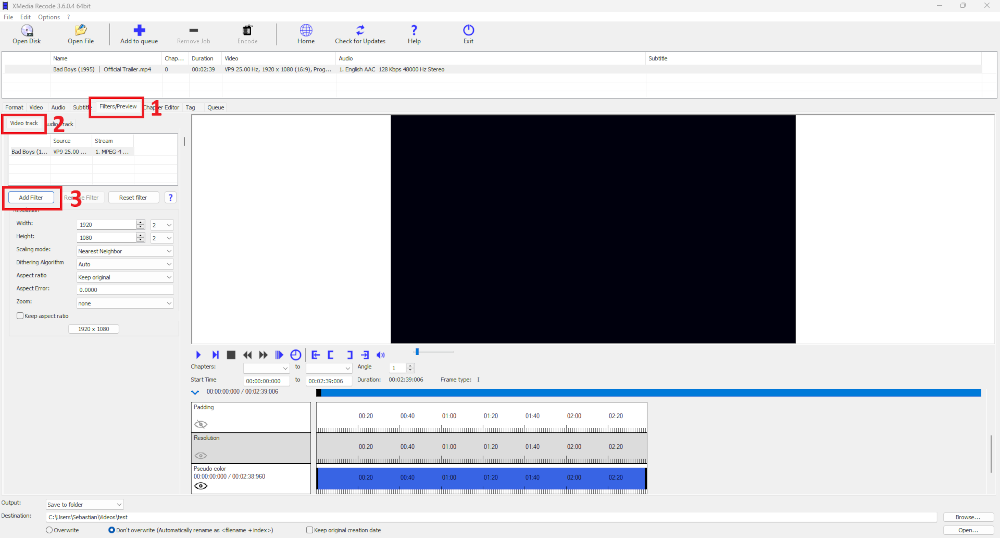
Step 2: RGB normalization. Select the filter and click "Add".
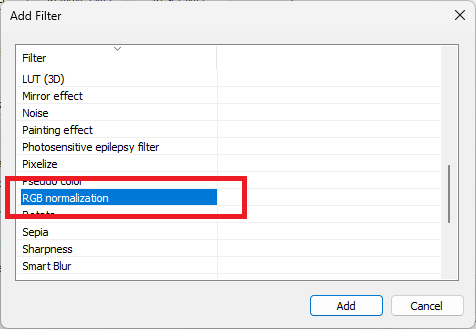
Step 3: Select RGB normalization and set the settings.
Start Time
- Specifies the start time of the filter.
End Time
- Specifies the desired end time of the filter.
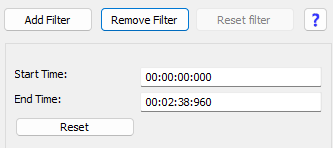
To apply the RGB normalization Filter precisely, it's important to specify both the start and end times. The start time indicates where in the video the RGB normalization Filter begins, so that the changes take effect from a specific point. The end time determines where the RGB normalization Filter ends, ensuring the filter is applied only to the desired section.
Darkest input color
The Darkest input color is assigned black by default.
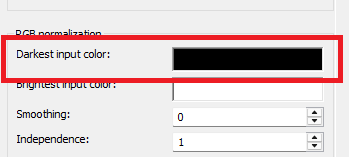
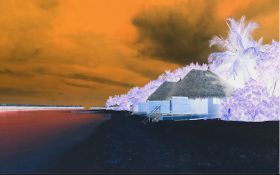
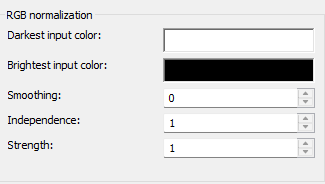
Specifying white for the darkest input color and black for the Brightest input color results in a color-inverted, normalized video
Advertisement
Brightest input color
The Brightest input color is assigned white by default.
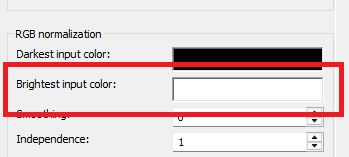
Specifying white for the darkest input color and black for the Brightest input color results in a color-inverted, normalized video
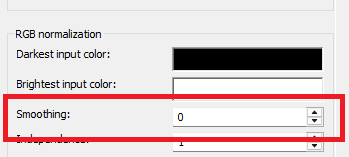
Smoothing
Sets the number of previous frames to use for time smoothing.
The input range of each channel is smoothed using a moving average over the current frame and previous frames.
The default value is 0 (no time smoothing).
Time smoothing of the input range reduces flicker (rapid changes in brightness) caused by small dark or bright objects entering or leaving the frame. This is similar to the automatic exposure control (automatic gain control) of a video camera and, as with a video camera, can result in temporary over- or underexposure of the video.
Independence
Controls the ratio of independent (color-shifting) channel normalization to linked (color-preserving) normalization.
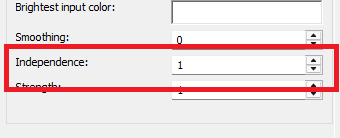
- 0.0 means fully linked
- 1.0 means fully independent
- Default value: 1.0 (fully independent)
Strength
Overall filter strength. 1.0 corresponds to full strength. 0.0 means that the filter has no effect and is relatively resource-intensive.
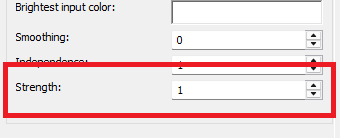
- The default value is 1.0 (full strength).
RGB normalization Examples
Color inverted settings
Before
After