Convert video to MP4
MP4 uses efficient codecs such as H.264 or H.265, which provide high video quality at relatively small file sizes.
This is especially useful if you want to save storage space without noticeably affecting the quality of the video.
MP4 is one of the most universal video formats and is supported by almost all modern devices and media players,
including smartphones, tablets, computers, TVs and game consoles.
Converting a video to MP4 ensures that it can be played smoothly on a wide range of devices.
Advertisement
Step 1. Add video

Click the "Open File" button to add videos you want to convert.
Step 2. Select output format
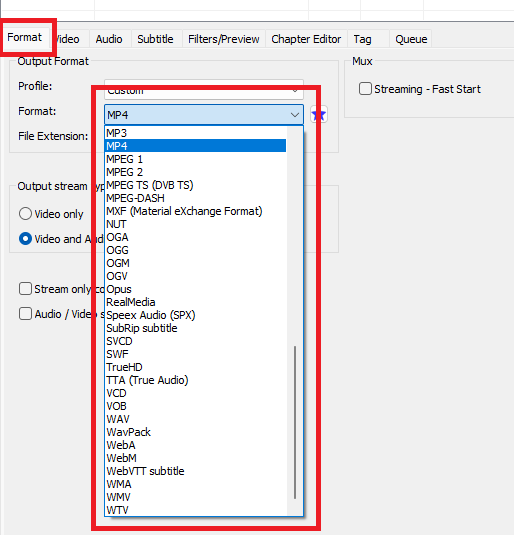
Click the "Format" tab and select "MP4" as the format.
MP4 container format supports the following codecs
| Audio Codec | Video Codec | Subtitle Codec |
|
AAC (Advanced Audio Codec) E-AC3 DTS ALAC (Apple Lossless Audio Codec) MP2 TrueHD Vorbis |
H.263 H.263+ Motion JPEG MPEG-1 MPEG-2 MPEG-4 MS MPEG4 V2 MS MPEG4 V3 VVC XVID |
Mov text |
The MP4 format is a versatile container that supports a wide range of audio, video and subtitle codecs. The choice of codecs depends on quality, compression and compatibility requirements. H.264 and AAC are the most widely used codecs, while HEVC and AV1 are becoming increasingly important. Subtitles are typically embedded as text files, allowing for flexible and cross-platform use.
Step 3. Select video codec
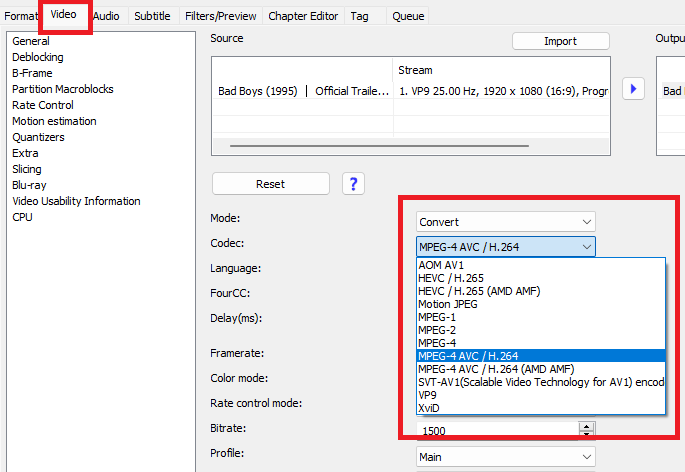
Click the "Video" tab to make changes to the video codec.
You can choose from H.264, AV1 and H.265 video codecs, each offering different benefits. H.264 is widely used and offers good compression, while H.265 (HEVC) allows for greater efficiency with better quality. AV1 is a modern video codec that offers better compression and quality with smaller file sizes.
Step 4. Select audio codec
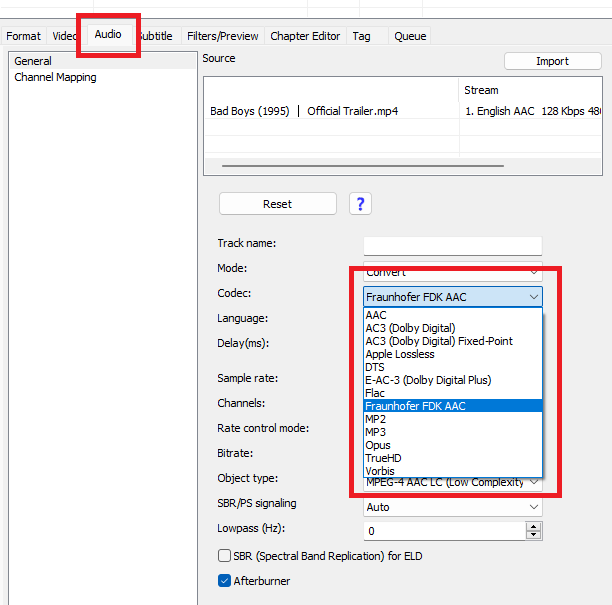
Click the Audio tab and select an available audio track.
Set the audio codec setting.
Advertisement
Step 5. Apply audio and video filters
Click "Filter/Preview" tab to add audio and video filters.
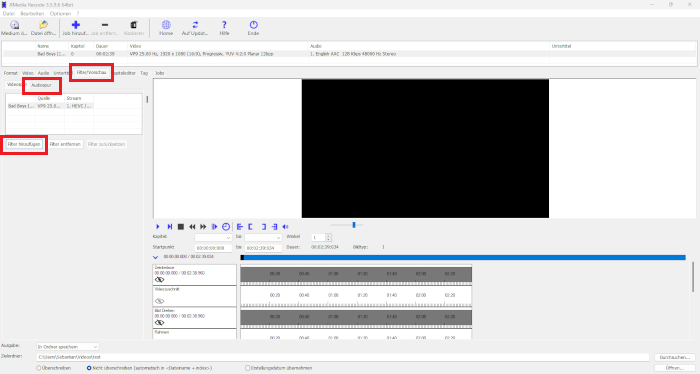
Instructions: Normalize volume & adjust volume
Instructions: Change video resolution
Video filter
- Box Blur
- Clip Speed
- Color Curves
- Color correction
- Cropping
- DeDot
- Denoise
- Delogo
- Deblocking
- Deinterlace
- Flip Image
- Grayscale
- HQX
- Hue / Saturation
- Image Stabilizer
- Invert
- Lut 3D
- Mirror effect
- Noise
- Painting effect
- Photosensitive epilepsy filter
- Pixelize
- Psoudo color
- Resolution
- Rotate
- Sepia
- Sharpness
- Smart Blur
- Subtitle rendering
- Swap U/V
- Text rendering
- Start Time
- End Time
- Padding
- Video fade in / fade out
- Vignette
- Watermark
- XBR
Audio filter
- 18 band equalizer
- Audio Fade in / fade out
- Chorus
- Delay
- Echo
- Tempo
- Vibrato effect
- Volume correction
Step 6. Select the storage folder for the video file
Click the "Browse" button and select a folder.

Step 7. Start video conversion

Click the "Add to queue" button

Click the "Encode" button
Advertisement
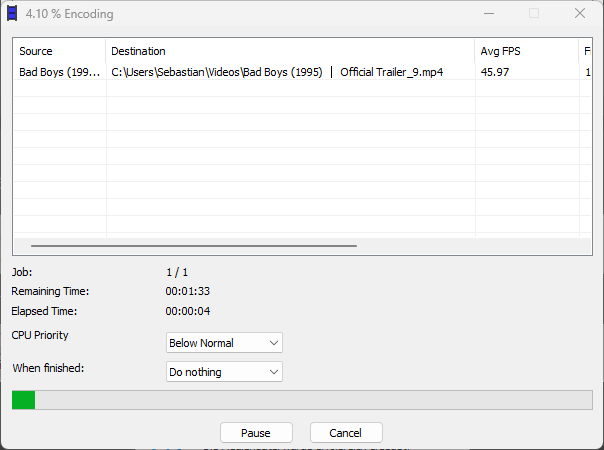
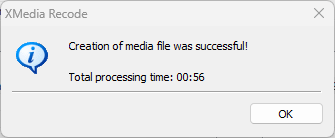
Step 8. Convert video