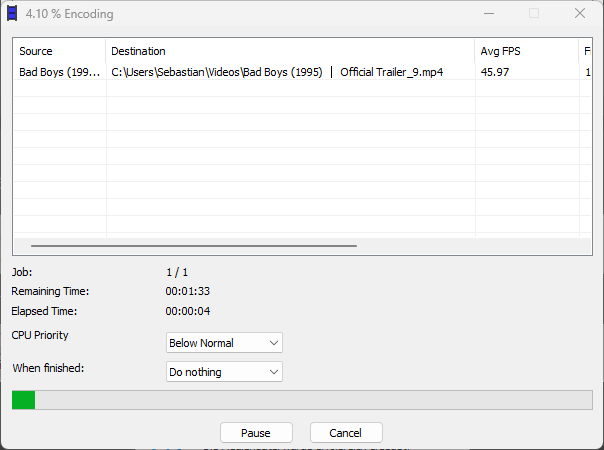
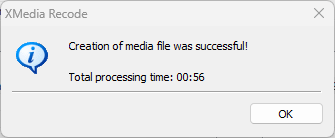
Step-by-Step Guide: Convert MOV/MKV to MP4
XMedia Recode allows you to convert an MOV/MKV file to MP4 format without any loss of quality by simply "repackaging" (container change) the file while keeping the video codec unchanged. This process is called re-muxing and does not result in any compression or change in video quality.
Since this method only changes the container and not the actual video or audio data, the quality of the file remains unchanged.
Advertisement
Step 1. Open MOV/MKV file: Click "File" and select the MOV/MKV file you want to convert.

Step 2. Select video

Select a title.
MP4 container format supports the following codecs
| Audio Codec | Video Codec | Subtitle Codec |
|
AAC (Advanced Audio Codec) E-AC3 DTS ALAC (Apple Lossless Audio Codec) MP2 TrueHD |
H.263 H.263+ Motion JPEG MPEG-1 MPEG-2 MPEG-4 MS MPEG4 V2 MS MPEG4 V3 VVC XVID |
Mov text |
The MP4 format is a versatile container that supports a wide range of audio, video and subtitle codecs. The choice of codecs depends on quality, compression and compatibility requirements. H.264 and AAC are the most widely used codecs, while HEVC and AV1 are becoming increasingly important. Subtitles are typically embedded as text files, allowing for flexible and cross-platform use.
Step 3. Choose output format: Select MP4 format from the "Format" drop-down menu.
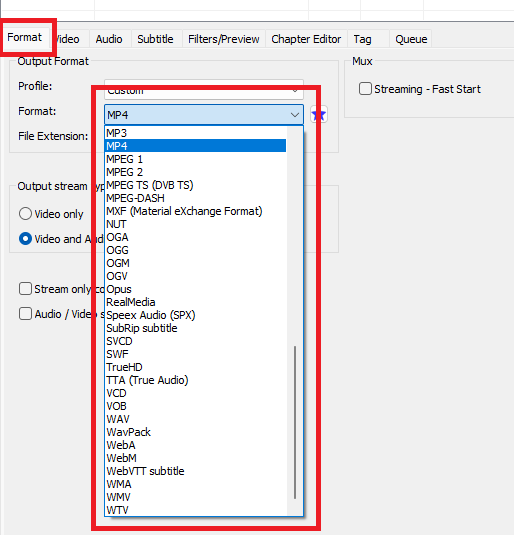
The MP4 format offers clear advantages in terms of compatibility, file size, streaming and ease of use on a variety of devices and platforms.
Step 4. Enable "Copy stream only"
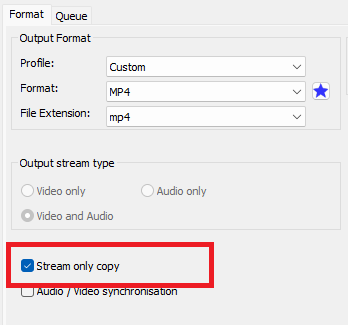
The "Copy stream only" feature in XMedia Recode is a feature that allows you to copy a video file or audio file without re-encoding the stream.
This feature is especially useful if you just want to change the container format or adjust some metadata without recompressing the file.
Advantages of the Copy Stream function
- Speed: Since the stream is simply copied, the process takes significantly less time than re-encoding.
- No loss of quality: Since no re-encoding takes place, the quality of the video or audio and the file size remain unchanged.
Advertisement
Step 5. Select the storage folder for the video file
Click the "Browse" button and select a folder.

Step 6. Start video conversion

Click the "Add Job" button

Click the "Encode" button
Advertisement
Step 7. Convert video